 CarTheme
How to Put Your Own Photo on the CarPlay Screen
You can put your own photo on the CarPlay screen using a photo widget. In CarTheme, choose a picture of your car, pet, family or favorite trip, style it and add the widget to your vehicle’s CarPlay setup.
This places the image inside a widget. It does not replace the entire CarPlay wallpaper or mirror your iPhone’s Photos library onto the dashboard.

What you need
An iPhone with a version of iOS that supports CarPlay widgets, a compatible CarPlay display and CarTheme. The steps below are for iOS 27. Available widget stacks and controls depend on the vehicle; use the setup screens while parked.
1. Choose your photo in CarTheme
Open CarTheme and create a photo widget using your chosen image. Start with one photo so it is easy to check the result. A clear subject and an uncluttered background work well on a small screen.
CarTheme’s photo widget collection includes framed designs, rounded corners and background removal. If you want a cutout of your car or pet, try the background-removal option and inspect the edges before saving. A transparent PNG is useful if you already have a cutout.
Keep important parts of the image away from the crop edges. A landscape photo may need reframing inside a square widget. For family pictures, choose something you are comfortable showing to passengers.
2. Save the design, then add the widget to your car
- Save your photo widget in CarTheme.
- On the iPhone, open Settings → General → CarPlay and select the vehicle you will use.
- Open Widgets, choose the option to add a widget and select an available CarTheme widget.
- Arrange it where you want it in the vehicle’s widget stacks.
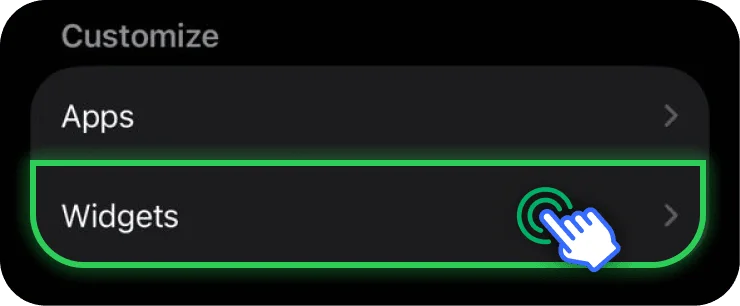
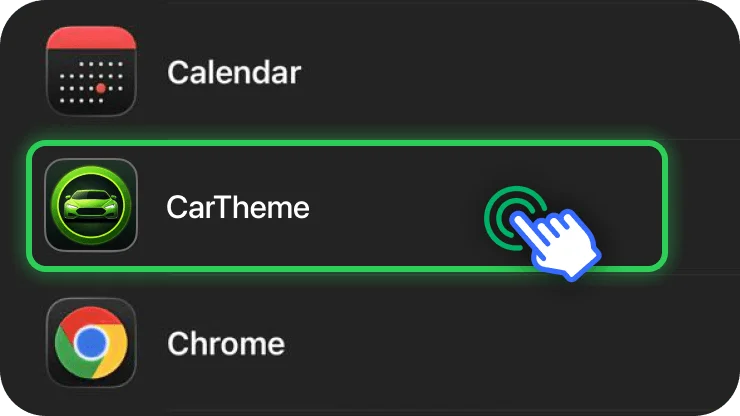
Apple’s CarPlay widget guide explains the vehicle settings and display-dependent stacks. If you need the full screenshot walkthrough, see how to add widgets to CarPlay.
3. Select the saved photo design
Adding the CarTheme provider and choosing your saved design are separate steps. If the widget shows a different image, use the information or configuration control beside the CarTheme widget and select the intended saved design. Control labels can vary with your app and iOS version.
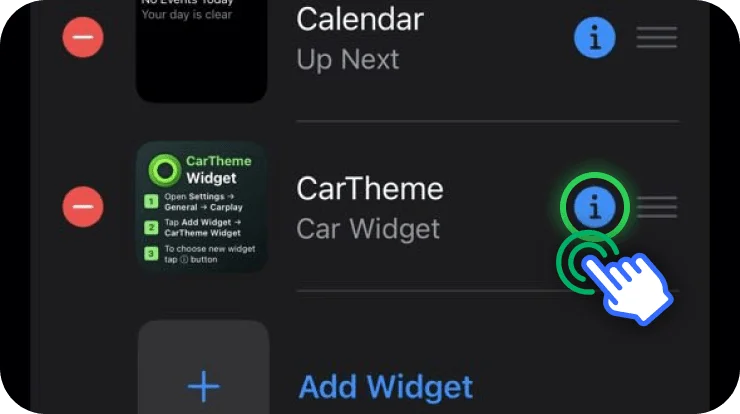
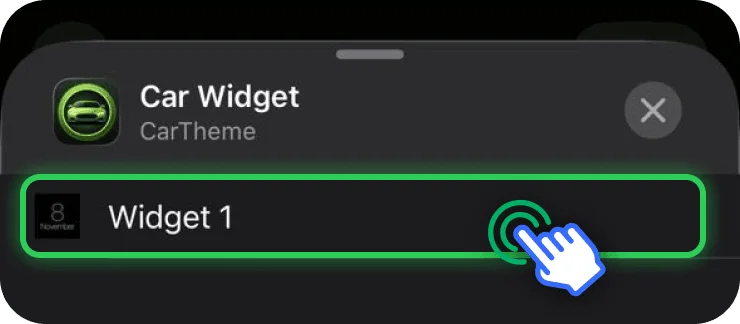
Connect to CarPlay and check the result while parked. If the picture is cropped too tightly, return to CarTheme, adjust the photo and save again.
Photo widget or custom wallpaper?
A photo widget occupies a tile in the CarPlay widgets screen. The system wallpaper is a separate background chosen in CarPlay settings on the car display. Importing a photo into CarTheme does not install it as that full-screen system background. See CarPlay wallpaper settings.
If your photo does not appear
- CarTheme is missing from the widget list: update the app, open it on the iPhone once and check the selected vehicle’s widget list again.
- A different photo appears: confirm the saved design selected in the widget configuration.
- The image is blank: open the photo widget in CarTheme, confirm the image is still available, save and reconnect.
- There is no widgets screen: check the iOS version and the vehicle display’s support before assuming an app problem.
For more detail, follow CarPlay widgets not showing: checks and fixes.
Quick questions
Can I put a picture of my own car on CarPlay?
Yes, as a photo widget. Pick a clear photo, use the available framing or background-removal options in CarTheme and add the saved design to your vehicle.
Can I use a photo album?
CarTheme supports a selected photo collection as well as a single image. Start with one picture while setting up; system-controlled widget refreshes should not be treated as a continuous slideshow.
Does this work with wireless CarPlay?
Photo widgets use the vehicle’s CarPlay widget support. Check the correct vehicle profile for either a wired or wireless connection. If CarPlay itself is disconnected, solve the connection first.
Explore the photo widget designs or finish your dashboard with matching CarPlay widgets.